Visualize in your interior
See the panel in place, at its real size, before you start on the smalto.
Step 1 · Sketch
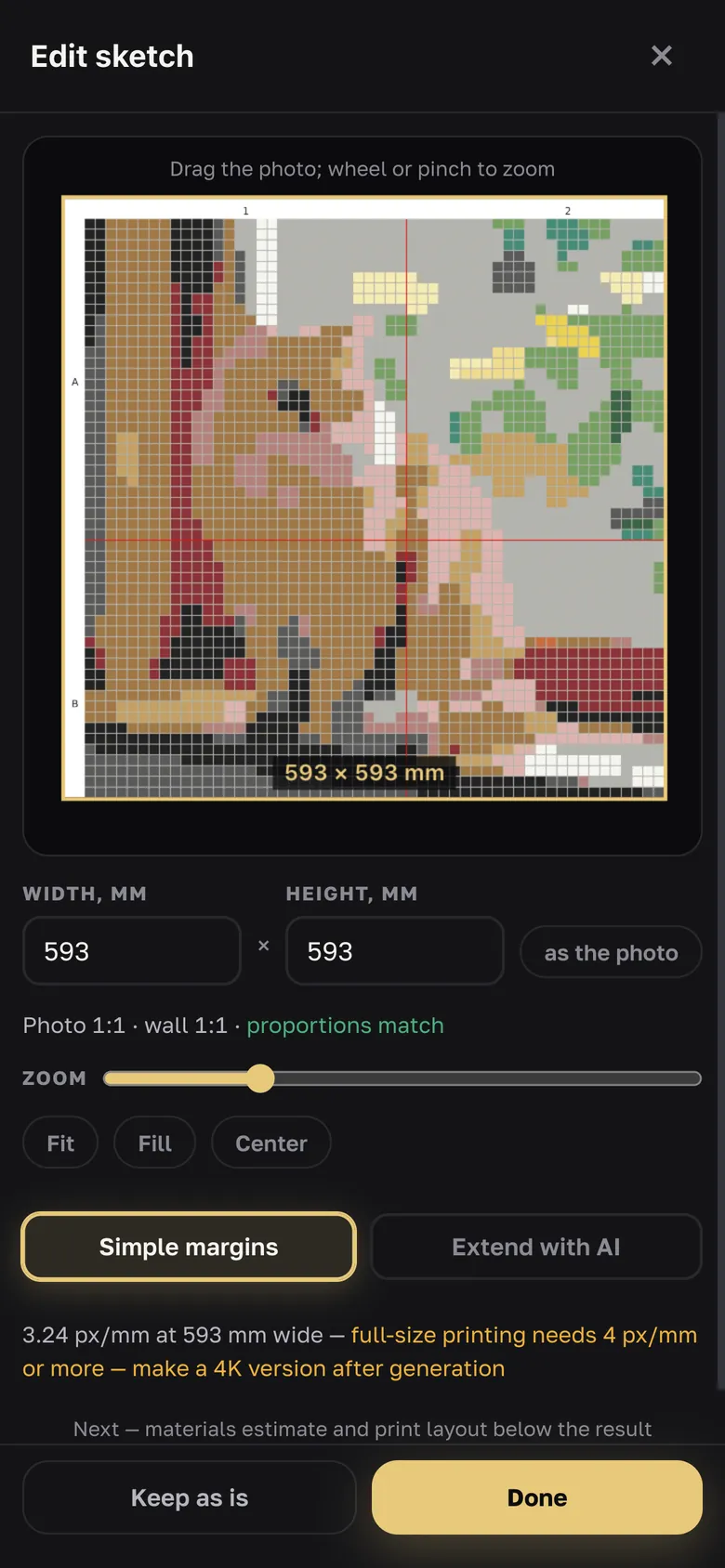
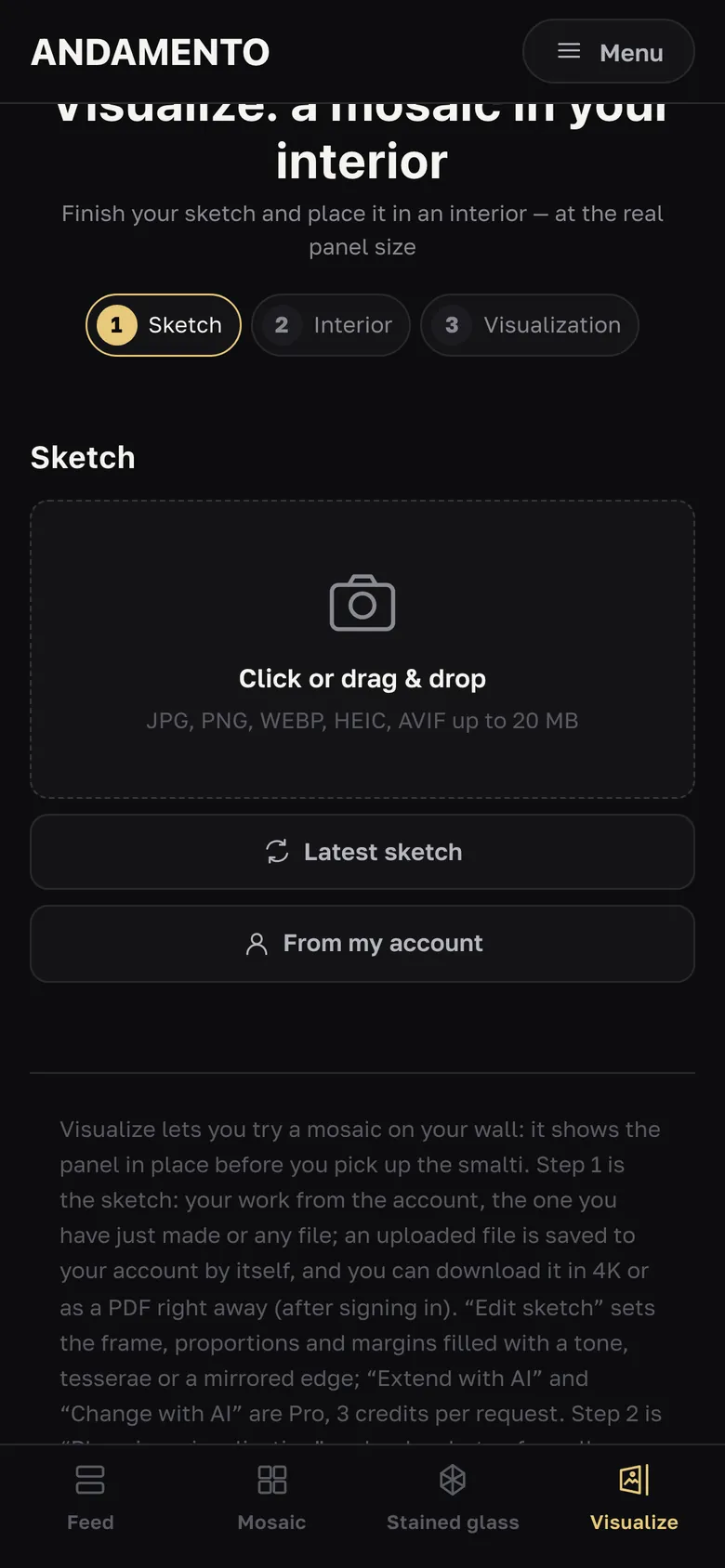
Upload a file, take the Latest sketch or pick one From my account; set the panel size in millimetres. “Edit sketch” is here too. The “Try on” button on the result screen leads here.
Step 2 · Interior
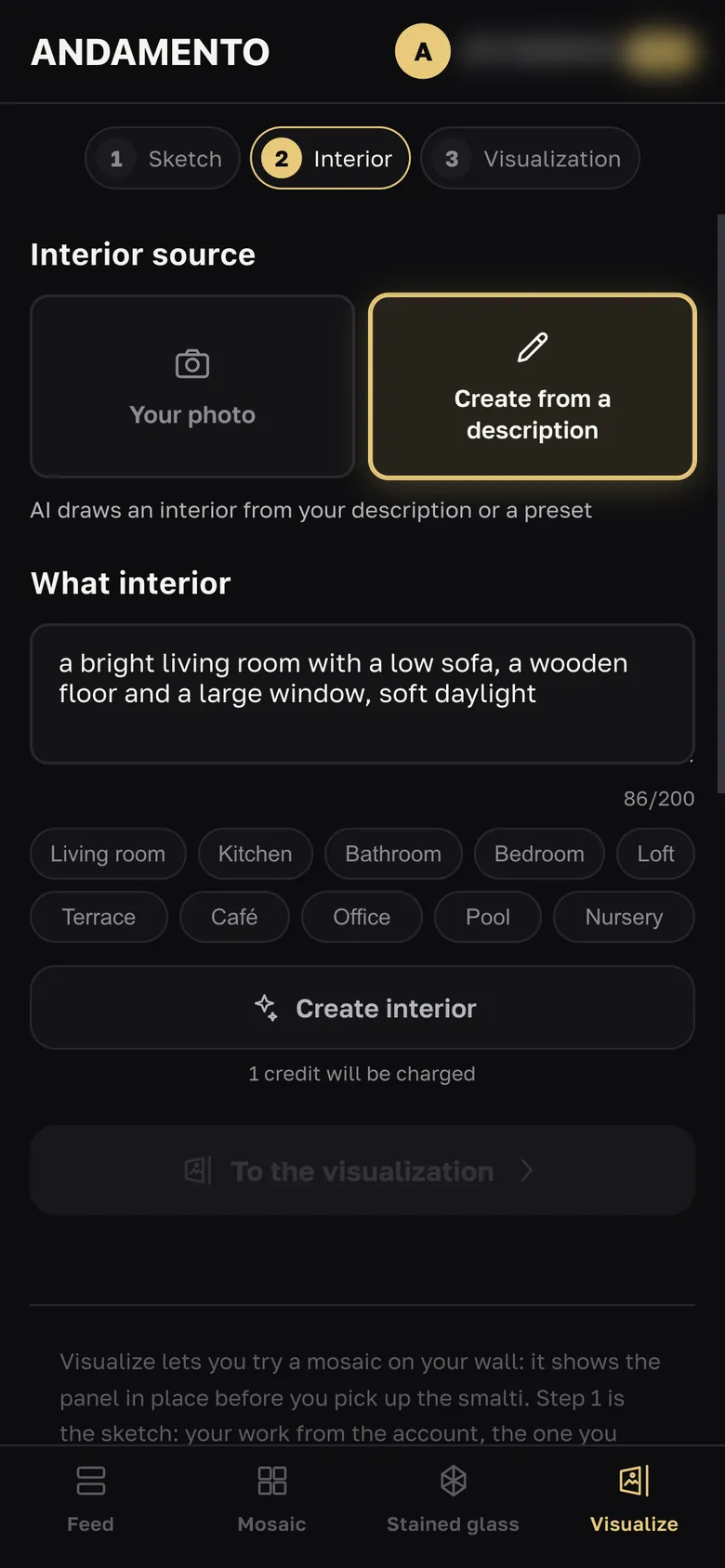
Your photo — a wall, room or facade, free. Or Create from a description: your own text or a preset — living room, kitchen, bathroom, hallway · floor, staircase · window and more; “Create interior · 1 credit”.
Step 3 · Visualization
Where: on a wall, in a window · glass or on the floor (by default from the sketch technique). Panel position: Mark on the photo — four corners, or Let AI choose. “Try the sketch on” — instant and free; “Visualize · 2 credits” — AI insertion with light and perspective, with Pro.
- Use the real sizes of the sketch and the wall or window — the scale depends on them. A square sketch in a wide window will look squashed.
- Without Pro the try-on is published to the feed, like your other works; with Pro it's private.
Try it yourself
10 credits on sign-up and up to 3 every day — free.